
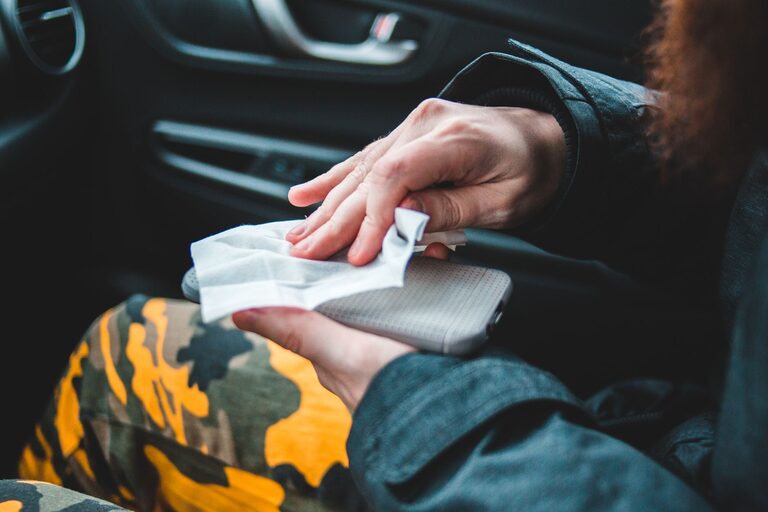
How to Clean Your Phone and Keyboard Safely
Keeping your phone and keyboard clean can improve your workspace and help your devices look and feel better. However, electronics need more care than ordinary household items. Too much liquid, harsh cleaners, or rough handling can damage screens, keys, ports, and internal components.
The good news is that regular cleaning is simple when you use the right tools and method. This guide explains how to clean your phone and keyboard safely, what to avoid, and how often to repeat the process.
Before You Start
Before cleaning any electronic device, take a few basic precautions:
– Unplug the keyboard from the computer.
– Turn off your phone and keyboard if possible.
– Remove the phone case.
– Wash and dry your hands.
– Work on a clean, dry surface.
– Keep liquids away from charging ports, openings, and switches.
– Check the device manufacturer’s cleaning instructions.
Never spray cleaner directly onto a phone or keyboard. Spray or apply it to a cloth instead. Direct spraying can force liquid into small gaps and cause damage.
Supplies You May Need
You do not need a large collection of special products. Gather the following:
– A clean microfiber cloth
– A soft, dry brush
– Compressed air
– Cotton swabs
– Distilled water
– Screen-safe cleaning wipes
– A small amount of isopropyl alcohol, if approved by the manufacturer
– A clean, dry towel
Avoid paper towels, tissues, rough sponges, abrasive powders, and strong household cleaners. These materials can scratch surfaces or leave residue.
How to Clean Your Phone Safely
Phones collect fingerprints, dust, skin oils, and debris throughout the day. Cleaning the screen and case regularly can keep the device more comfortable to use.
1. Turn Off the Phone
Power down your phone and disconnect any cables. Turning it off reduces the chance of accidental taps and helps you see dirt on the dark screen. It also prevents charging-related problems if moisture reaches a port.
Remove the case before cleaning. Dirt can collect between the case and the phone, where it may rub against the device and cause scratches.
2. Remove Loose Dust
Use a dry microfiber cloth to gently remove dust from the screen and back of the phone. Move the cloth in light, even strokes rather than pressing firmly.
For small gaps around buttons, speakers, or cameras, use a soft, dry brush. A clean, dry cotton swab can also help with edges. Do not push debris deeper into openings.
3. Wipe the Screen
If the screen still has smudges, slightly dampen a corner of the microfiber cloth with distilled water or use a manufacturer-approved screen wipe. The cloth should be damp, not wet.
Gently wipe the screen from one side to the other. Avoid applying heavy pressure, especially around the edges. Once finished, use a dry part of the cloth to remove any remaining moisture.
Some phones have protective coatings that help reduce fingerprints. Strong cleaners can wear down these coatings, so avoid products containing bleach, ammonia, acetone, or other harsh chemicals unless the manufacturer specifically approves them.
4. Clean the Ports Carefully
Charging ports and speaker openings should be handled with extra care. Use a soft, dry brush to loosen visible dust. You can also use short bursts of compressed air if the product is designed for electronics.
Hold the device so that loosened debris can fall out. Do not insert pins, paper clips, knives, or other sharp objects into a port. Avoid pushing cotton fibers into the opening as well.
If a port appears blocked or damaged, stop cleaning and consult the device manufacturer or a qualified repair professional.
5. Clean the Phone Case
Many phone cases can be cleaned separately with mild soap and warm water. Check the case maker’s instructions first, especially for leather, fabric, wood, or decorative cases.
For a standard plastic or silicone case:
- Remove the case from the phone.
- Wash it with a small amount of mild soap and water.
- Rinse away soap residue.
- Dry it completely with a soft towel.
- Allow it to air-dry before putting it back on the phone.
Never put a damp case back on your phone. Trapped moisture can damage the device or create an unpleasant odor.
How to Clean a Keyboard Safely
Keyboards collect dust, crumbs, hair, and skin oils. Cleaning them regularly can help keys move smoothly and prevent buildup around switches.
1. Disconnect the Keyboard
Unplug a wired keyboard. For a wireless model, turn it off and remove the batteries if practical. If the keyboard is built into a laptop, shut down the laptop and disconnect the charger.
Place the keyboard upside down over a desk or trash can and gently shake it. This can remove loose crumbs without tools. Do not hit the keyboard against a hard surface.
2. Blow Away Dust and Crumbs
Use compressed air in short bursts. Hold the keyboard at a slight angle so debris can move out rather than settle farther inside.
Keep the can upright and follow its instructions. Do not tilt or shake it while spraying, because liquid propellant may escape. Avoid holding the nozzle too close to the keys.
For a mechanical keyboard, you may be able to remove the keycaps with a proper keycap puller. Only do this if the keyboard design allows it and you are comfortable replacing the keys correctly. Take a photo first so you can remember the original layout.
3. Wipe the Keys and Surface
Lightly dampen a microfiber cloth with water or an approved electronics cleaner. Wipe the tops of the keys, the space around them, and the keyboard frame.
For narrow spaces, use a dry or slightly damp cotton swab. Do not allow liquid to pool around the keys. If the cloth feels wet, squeeze it out before continuing.
For a laptop keyboard, use extra care. The parts beneath the keys are often more difficult to access and may be easier to damage than those in a separate desktop keyboard.
4. Deal With Sticky Residue
Sticky keys may need several gentle passes with a slightly damp cloth. Do not pour cleaner onto the keyboard or remove keys by force.
If a key remains stuck after cleaning, consult the keyboard’s instructions. Some models have removable keycaps, while others may be damaged by removal. A repair shop may be the safest option for a serious spill or internal problem.
What to Avoid
These common mistakes can damage electronics:
– Spraying liquid directly onto a device
– Using bleach, glass cleaner, or abrasive products
– Scrubbing with rough materials
– Using excessive pressure on a screen or keys
– Inserting sharp objects into ports
– Pouring water over a keyboard
– Cleaning a device while it is powered on or connected
– Using a hair dryer or heat gun to dry electronics
– Reconnecting a device before it is completely dry
If a spill occurs, turn off the device immediately, disconnect it from power, and allow it to dry in a safe, ventilated area. Do not use heat to speed up drying.
How Often Should You Clean?
A quick wipe once or twice a week is enough for many people. Clean more often if you eat while using your devices, share them with others, or use them in dusty environments.
A simple routine works well:
– Wipe your phone screen every few days.
– Clean the phone case weekly.
– Remove keyboard debris weekly.
– Perform a deeper keyboard cleaning every month or as needed.
– Clean devices after visible spills or heavy buildup.
Regular, gentle cleaning is safer than waiting until dirt requires aggressive scrubbing. With a microfiber cloth, a soft brush, and a careful approach, you can keep your phone and keyboard clean without putting sensitive electronics at risk.
